A user posted a two-step instructable on album art removal from multiple MP3 folders at once. Enjoy!
Tuesday, 28 March 2017
Sunday, 26 March 2017
Solving the pre-embedded song lyrics issue in iOS 10.x
When Apple had updated its mobile OS to version 10, some users began complaining that their music app no longer shows lyrics that they painstakingly added to their tracks before placing into iTunes media library and later uploading to iPhones or other iOS devices.
Whether the reason is a bug in the new iOS or a desire to force iPhone owners to use only Apple's own paid music services, there are several solutions that users might try to make phones display the 'lost' lyrics again.
First of all, Apple made the process of lyrics displaying in the app a bit more difficult. Previously, to view the lyrics for the currently played song, it was enough to tap the album's cover. Now the user must first tap the three-dots icon in the lower right corner of the screen, and then choose View Lyrics from the menu.
However, as it was said above, some lyrics that previously had been showing, 'mysteriously' disappeared in iOS 10 and above. Currently, there are two solutions to this issue that worked at least for some users.
For this, you must have the full copy of your music collection on your computer properly tagged, and with lyrics pre-embedded. To save you the trouble of manually re-checking song information correctness in iTunes after recreating your music library there, you can use one of the available automated music taggers. I personally prefer taghycardia. The program scans your entire music collection indicating any issues such as album/artist spelling inconsistencies or missing cover art, and fixing the problems in a highly automated fashion.
In addition, taghycardia can find lyrics online for the tracks that miss it and embed them for you into your albums. You can download taghycardia here.
After you've made sure your music collection is properly tagged with lyrics and cover art, add the library to iTunes and re-sync with your iPhone.
Most of the 'lost' lyrics should re-appear.
If some of the lyrics still appear to be missing on your iPhone, there is another workaround that can help restore them: the texts should be modified just a little bit and re-uploaded to iPhone.
If an album still lacks lyrics after the re-syncing described in the Solution 1, change the lyrics of the tracks slightly, for example by adding an empty line before each song text.
The easiest way to do this is again by using taghycardia. Point the program to the original folder on you HDD containing an album that needs fixing, press Go, double click the line beginning with the word 'Lyrics', and add an empty line before each song text one by one. Now press Update in tags, and re-upload the album onto iPhone. This can be done without re-syncing by enabling Manual music management in iTunes. Having activated the manual option, you can just remove the album from the library, add it from your local HDD folder again, right-click the tracks and choose 'Add to my iPhone'.
Whether the reason is a bug in the new iOS or a desire to force iPhone owners to use only Apple's own paid music services, there are several solutions that users might try to make phones display the 'lost' lyrics again.
First of all, Apple made the process of lyrics displaying in the app a bit more difficult. Previously, to view the lyrics for the currently played song, it was enough to tap the album's cover. Now the user must first tap the three-dots icon in the lower right corner of the screen, and then choose View Lyrics from the menu.
However, as it was said above, some lyrics that previously had been showing, 'mysteriously' disappeared in iOS 10 and above. Currently, there are two solutions to this issue that worked at least for some users.
How to recover lyrics that disappeared in iOS 10
Solution 1. Delete the entire music library from your device and re-upload all your tracks
For this, you must have the full copy of your music collection on your computer properly tagged, and with lyrics pre-embedded. To save you the trouble of manually re-checking song information correctness in iTunes after recreating your music library there, you can use one of the available automated music taggers. I personally prefer taghycardia. The program scans your entire music collection indicating any issues such as album/artist spelling inconsistencies or missing cover art, and fixing the problems in a highly automated fashion.
In addition, taghycardia can find lyrics online for the tracks that miss it and embed them for you into your albums. You can download taghycardia here.
After you've made sure your music collection is properly tagged with lyrics and cover art, add the library to iTunes and re-sync with your iPhone.
Most of the 'lost' lyrics should re-appear.
Solution 2. Slightly update the embedded lyrics
If some of the lyrics still appear to be missing on your iPhone, there is another workaround that can help restore them: the texts should be modified just a little bit and re-uploaded to iPhone.
If an album still lacks lyrics after the re-syncing described in the Solution 1, change the lyrics of the tracks slightly, for example by adding an empty line before each song text.
The easiest way to do this is again by using taghycardia. Point the program to the original folder on you HDD containing an album that needs fixing, press Go, double click the line beginning with the word 'Lyrics', and add an empty line before each song text one by one. Now press Update in tags, and re-upload the album onto iPhone. This can be done without re-syncing by enabling Manual music management in iTunes. Having activated the manual option, you can just remove the album from the library, add it from your local HDD folder again, right-click the tracks and choose 'Add to my iPhone'.
Friday, 17 March 2017
Monday, 6 February 2017
How to remove all album art from multiple MP3 files in a couple of clicks
Having embedded cover images in music files is good if you like to look at the album art when playing your music on a mobile device. However, JPEGs or pics of other formats embedded in MP3 files can take up lots of useful space on your HDD, SDD or portable player, especially when the same image is inserted into every file of an album, which is most often the case.
The easiest way to quickly remove ALL images from a bunch of MP3 albums is to use a free program called taghycardia.
Download the utility here, run the installation file, choose "I'd like to use the program to strip cover art from music files to save space" in the initial setup dialog.

Now choose a root folder of your MP3 collection (such as C:\MP3) by clicking the three-dots button at the top left

... and press Remove Art.

Now, the only thing left to do is to click the Go On button (If you wish to save the found embedded covers as image files, check the corresponding checkbox).

With this, the program will quickly scan ALL of your MP3 albums and files under the selected root, removing any embedded images.

So, just several clicks, and you're good.
The easiest way to quickly remove ALL images from a bunch of MP3 albums is to use a free program called taghycardia.
Download the utility here, run the installation file, choose "I'd like to use the program to strip cover art from music files to save space" in the initial setup dialog.
Now choose a root folder of your MP3 collection (such as C:\MP3) by clicking the three-dots button at the top left
... and press Remove Art.
Now, the only thing left to do is to click the Go On button (If you wish to save the found embedded covers as image files, check the corresponding checkbox).
With this, the program will quickly scan ALL of your MP3 albums and files under the selected root, removing any embedded images.
So, just several clicks, and you're good.
Sunday, 29 January 2017
How to Get and Embed Cover Art into Your MP3 Files Automatically
So you like to see the cover art of an album you're playing on your Android or iOS device, but when you upload your music files to your smartphone, it shows only a dummy image.
The free utility named taghycardia will fix the things for you totally automatically, going through all of your albums, finding cover art for them on its own, and embedding it into the music files so you can always see the covers on your mobile device.
Download taghycardia here, run the installation file, and choose "To download cover art for your music library automatically" in the initial setup dialog.

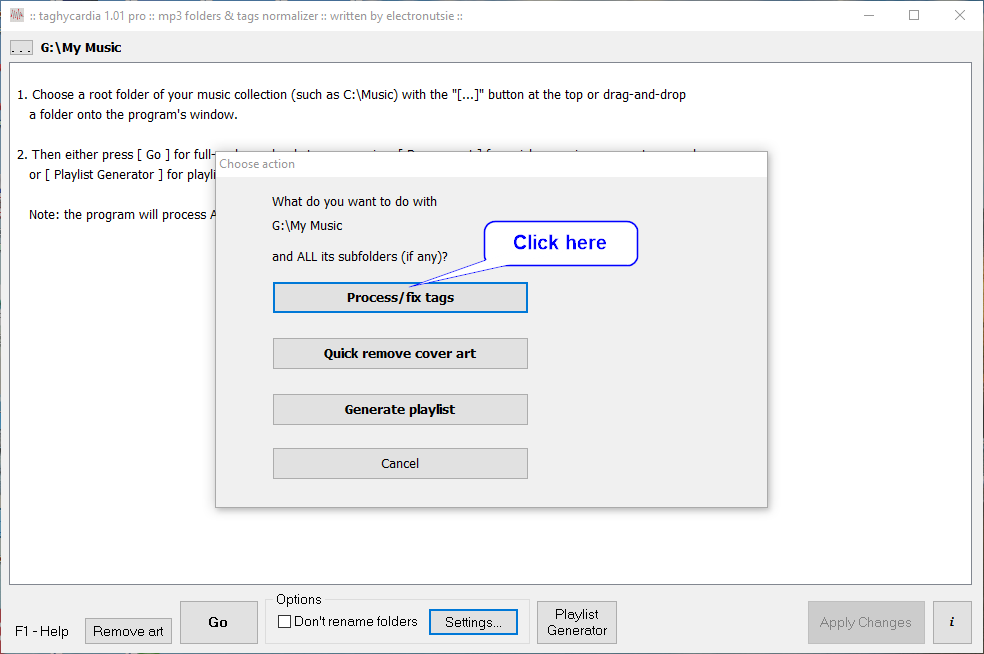
Now, to have the program find album art for your music, just drag-and-drop the home folder of your MP3 collection (say, C:\My Music\) into the program's window, and choose "Process/fix tags".

After taghycardia finishes the process, you can review the cover images it found for your albums by scrolling through the program's window.


Now, the only thing left to do is to press the Apply Changes button to embed the covers into your music files, so the album images will be always shown when you play your music on your mobile device!

The free utility named taghycardia will fix the things for you totally automatically, going through all of your albums, finding cover art for them on its own, and embedding it into the music files so you can always see the covers on your mobile device.
Download taghycardia here, run the installation file, and choose "To download cover art for your music library automatically" in the initial setup dialog.
Now, to have the program find album art for your music, just drag-and-drop the home folder of your MP3 collection (say, C:\My Music\) into the program's window, and choose "Process/fix tags".
After taghycardia finishes the process, you can review the cover images it found for your albums by scrolling through the program's window.
Now, the only thing left to do is to press the Apply Changes button to embed the covers into your music files, so the album images will be always shown when you play your music on your mobile device!
Tuesday, 8 November 2016
taghycardia reviewed at RaritySoft
Quote: "If you have a portable media device that only classifies the tracks according to the tags, then this is the program for you."More:http://www.raritysoft.com/reviews/organize-your-music-player-with-taghycardia
Read the full taghycardia review at RaritySoft's website: http://www.raritysoft.com/reviews/organize-your-music-player-with-taghycardia
Read the full taghycardia review at RaritySoft's website: http://www.raritysoft.com/reviews/organize-your-music-player-with-taghycardia
Saturday, 26 September 2015
Display lyrics of MP3 files played on an Android device
Unlike iOS, Android OS has no standard music player capable of showing lyrics while the user is listening to songs. There are some paid and even free options in Google Play for downloading lyrics, but what if you are in an area that has no mobile Internet coverage? The answer is to use a player supporting the displaying of lyrics already embedded into the tracks.
Unfortunately, most MP3 files do not have lyrics embedded into them. A simple way to find lyrics for your MP3 collection and embed song texts into the tracks is by using taghycardia, a highly automated program for improving music metadata.
You can download taghycardia here. When the program is run for the first time, a configuration wizard is displayed. For lyrics discovery, select the option Use for general MP3 autotagging / tag diagnostics, or, if you also want the program to get cover images for your albums online, check Use to download cover art for your MP3 library.

When the program's main window is shown, select the folder of the MP3 album you are about to put on your Android device by pressing the three dots button in the top left corner, then press [ Go ]. Alternatively, just drug and drop the folder onto the program's window.
After taghycardia has processed your album, it shows diagnostic information about it. To make the program get song texts for you, locate the line beginning with the word "Lyrics: ", and double click it.

Once the lyrics are downloaded, press [ Update in Tags ] to embed the texts into the music tracks. Simple as that.

Now the album is ready for the uploading to an Android device. One of the best Android apps that support embedded lyrics is called Rocket Player. Download the free version and open the album you have prepared with taghycardia. To enable the lyrics display feature in Rocket Player, tap the three vertical dots menu in the top right corner of the screen, and choose Lyrics, then select Embedded. Of course, one can choose Downloaded, but for this an always-on Internet connection would be needed.

Now you can read the lyrics of the tracks while playing them!

Unfortunately, most MP3 files do not have lyrics embedded into them. A simple way to find lyrics for your MP3 collection and embed song texts into the tracks is by using taghycardia, a highly automated program for improving music metadata.
You can download taghycardia here. When the program is run for the first time, a configuration wizard is displayed. For lyrics discovery, select the option Use for general MP3 autotagging / tag diagnostics, or, if you also want the program to get cover images for your albums online, check Use to download cover art for your MP3 library.
When the program's main window is shown, select the folder of the MP3 album you are about to put on your Android device by pressing the three dots button in the top left corner, then press [ Go ]. Alternatively, just drug and drop the folder onto the program's window.
After taghycardia has processed your album, it shows diagnostic information about it. To make the program get song texts for you, locate the line beginning with the word "Lyrics: ", and double click it.
Once the lyrics are downloaded, press [ Update in Tags ] to embed the texts into the music tracks. Simple as that.
Now the album is ready for the uploading to an Android device. One of the best Android apps that support embedded lyrics is called Rocket Player. Download the free version and open the album you have prepared with taghycardia. To enable the lyrics display feature in Rocket Player, tap the three vertical dots menu in the top right corner of the screen, and choose Lyrics, then select Embedded. Of course, one can choose Downloaded, but for this an always-on Internet connection would be needed.

Now you can read the lyrics of the tracks while playing them!


Subscribe to:
Posts (Atom)